
Chapter 4 · 4.3
Domain settings: SSL, PHP, www and private_html
Every domain in your package has a few basic settings: whether SSL is on, whether PHP can run, and whether the site works with or without www. You'll find these settings by clicking on the domain name under Domains. This takes you to Edit followed by the domain name.
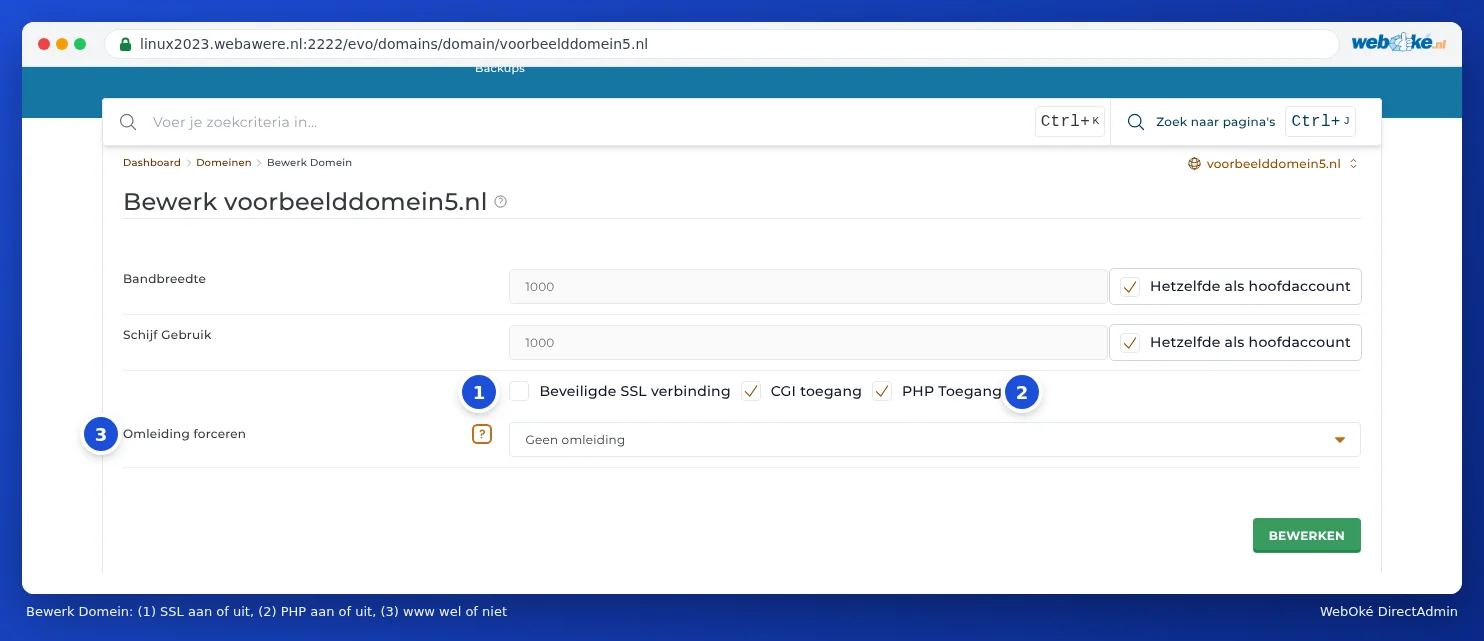
The settings
| Setting | What does it do? | Advice |
|---|---|---|
| Bandwidth and Disk Usage | A separate limit for this domain within your package. | Leave this on Same as Main account. The domain then simply shares the space of your package. |
| Secure SSL (1) | Turns on https for this domain. Without this switch, no certificate will work. | Always on. |
| CGI Access | Allows old CGI scripts (for example in Perl) in the cgi-bin folder. | Leave it as it is. A regular website doesn't need it. |
| PHP Access (2) | Turns on PHP for this domain. WordPress and almost all websites need PHP. | Always on, unless you only have separate HTML files. |
| Force redirect (3) | Always sends visitors to the address with www, or always to the address without www. | Choose what suits your website (see below). |
After making a change, click SAVE to save it.
With or without www
Your website can be reached via yourdomain.com and via www.yourdomain.com. For search engines, it's better to choose one of the two. Under Force redirect, you have three options:

- No redirection: both addresses work side by side. This is the default.
- www.yourdomain.com: visitors without www are automatically sent to the address with www.
- yourdomain.com: visitors with www are automatically sent to the address without www.
Please note: If you use WordPress, choose the same option here as the website address set in WordPress (under Settings, General). If you choose www here while WordPress is set to without www, they'll send visitors back and forth, and you'll get a message saying the page isn't redirecting properly.
Extra options when SSL is on
If Secure SSL is on, you'll see two more settings on this page:
- SSL, with the Force SSL with https redirect switch: automatically sends everyone to the secure https version of your site.
- HSTS, with the Enable HTTP strict transport security switch: tells browsers that from now on they should only open your site via https.
Only turn these on once the certificate is working. You can read how and when in Always redirect visitors to https.
What is private_html?
Your domain's folder contains two folders: public_html and private_html. In the past, DirectAdmin showed the contents of public_html for http and the contents of private_html for https. This meant you had to put your site in two places. Nowadays, private_html at WebOké is a reference (symbolic link) to public_html: you'll see the same website for both http and https. So you always put your website in public_html.
If you still see a different or empty page with https, or a message saying you need to put an index.html in private_html, then private_html is still a separate folder for your domain. In that case, check Let's Encrypt not working: causes and solutions to see what to do, or ask us to change it via a ticket.
Tip: You don't choose the PHP version here, but under Select PHP version (see Selecting the PHP version (Select PHP version)).