
Chapter 6 · 6.2
Requesting a free Let's Encrypt certificate
Watch it in a short video
Usually, you don't need to do anything: DirectAdmin requests the certificate automatically as soon as your domain points to your package. If your domain still doesn't have a certificate after a few hours, for example after a move, you can start the process yourself.
Step 1: check that your domain points to your package
Let's Encrypt can only issue a certificate if your domain points to our server. Have you just changed your DNS or nameservers? Then wait until that's visible everywhere first, usually a few hours (see When does a change take effect? Waiting time and TTL).
Step 2: open SSL/TLS Certificates
- Log in to DirectAdmin and select the correct domain at the top right.
- Under Account Manager, click SSL/TLS Certificates.
- Look under Automatic certificate provisioning.
- Do you see the Provision now button? Then go to step 4.
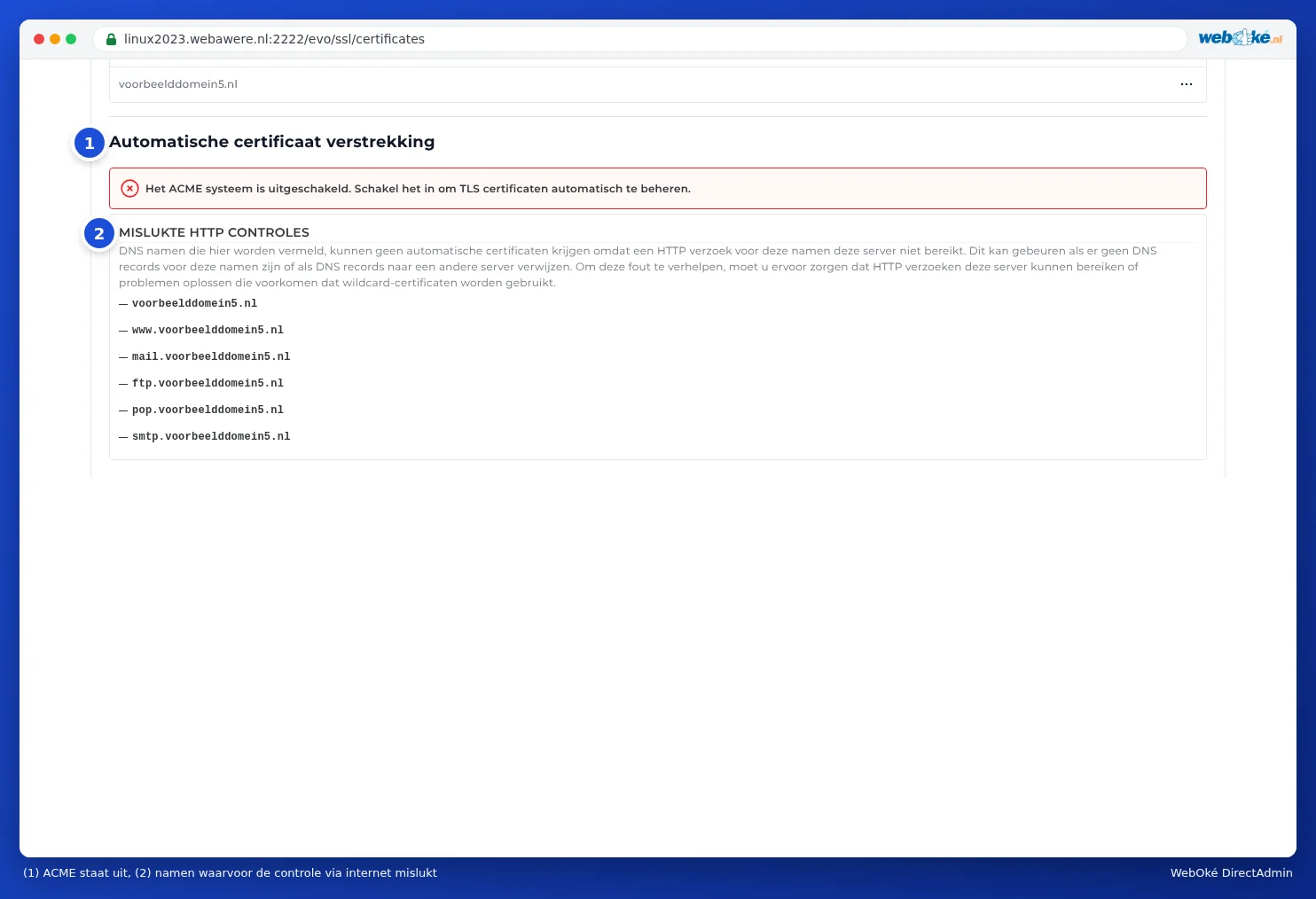
- Do you see the message The ACME system is disabled. Enable it to automatically manage TLS certificates.? Then go to step 3 first.
Please note: At WebOké, ACME is switched on by default. If you still see this message, switch it on as described in step 3, and feel free to let us know via a support ticket.
Step 3: enable ACME
- Click ACME Settings at the top.
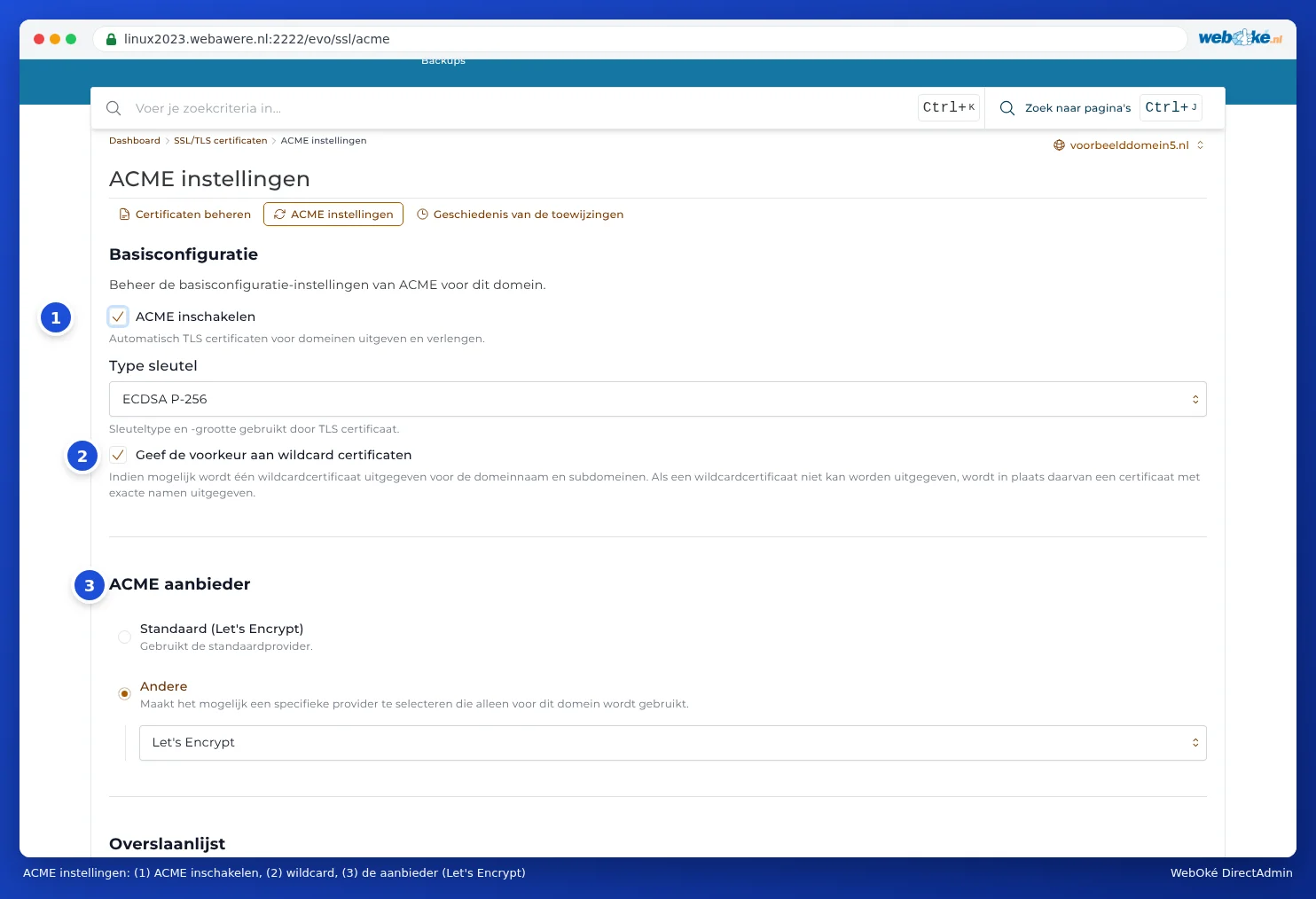
- Under Basic configuration, switch on the Enable ACME toggle (1).
- Leave the other settings as they are: Key Type set to ECDSA P-256 and ACME provider (3) set to Let's Encrypt. This can appear in two ways: Default (Let's Encrypt), or Other with Let's Encrypt underneath. Both are fine.
- Scroll down and click SAVE CHANGES.

Step 4: Provision now
- Go back to Manage certificates.
- Under Automatic certificate provisioning, click Provision now.
- Confirm the question Are you sure you want to trigger an immediate certificate provisioning?
You'll see Certificate provisioning triggered successfully. The request runs in the background and usually takes a few minutes. Come back to the page afterwards: the certificate will then appear in the Certificate list. If you don't click Provision now, DirectAdmin will do it automatically within 24 hours.
Which names are included?
DirectAdmin includes all names for your domain that point to the server: the domain itself, www, and also mail, ftp, pop and smtp. This means you can use your own domain name as the server in your email program and in FTP, without a certificate warning (see All settings at a glance: servers, ports and security). Subdomains and pointers are also included if they point to the server (see Certificate for www, subdomains and wildcard).
Names that don't point to the server are skipped by DirectAdmin. These appear under FAILED HTTP CHECKS. This isn't a problem if you don't use that name.
After requesting the certificate
- Check that your site works via https://yourdomain.com.
- Then redirect all visitors to https (see Always redirect visitors to https).
- Using WordPress? Set the website address in WordPress to https (see No padlock or 'not secure': fixing mixed content).
Tip: You can also ask the AI assistant in My WebOké to request a certificate for you. It will first check that everything is correct.