
Chapter 12 · 12.4
Exporting a database
An export is a file with the complete contents of your database. You need this to keep a copy before making major changes, to move your website to a different location, or to give a database to your web developer. You can export in DirectAdmin itself or in phpMyAdmin.
Exporting in DirectAdmin (the fastest way)
- Go to Databases and click Manage next to the database.
- Scroll to Database Operations.
- Click Export as SQL for a regular .sql file, or Export as GZ for a compressed file (.sql.gz). The latter is much smaller and downloads faster.

The file ends up in your computer's downloads folder.
Exporting in phpMyAdmin
- Open phpMyAdmin (see Opening and using phpMyAdmin) and click the database on the left.
- Click the Export tab at the top.
- Leave Export method set to Quick and Format set to SQL.
- Click Export.
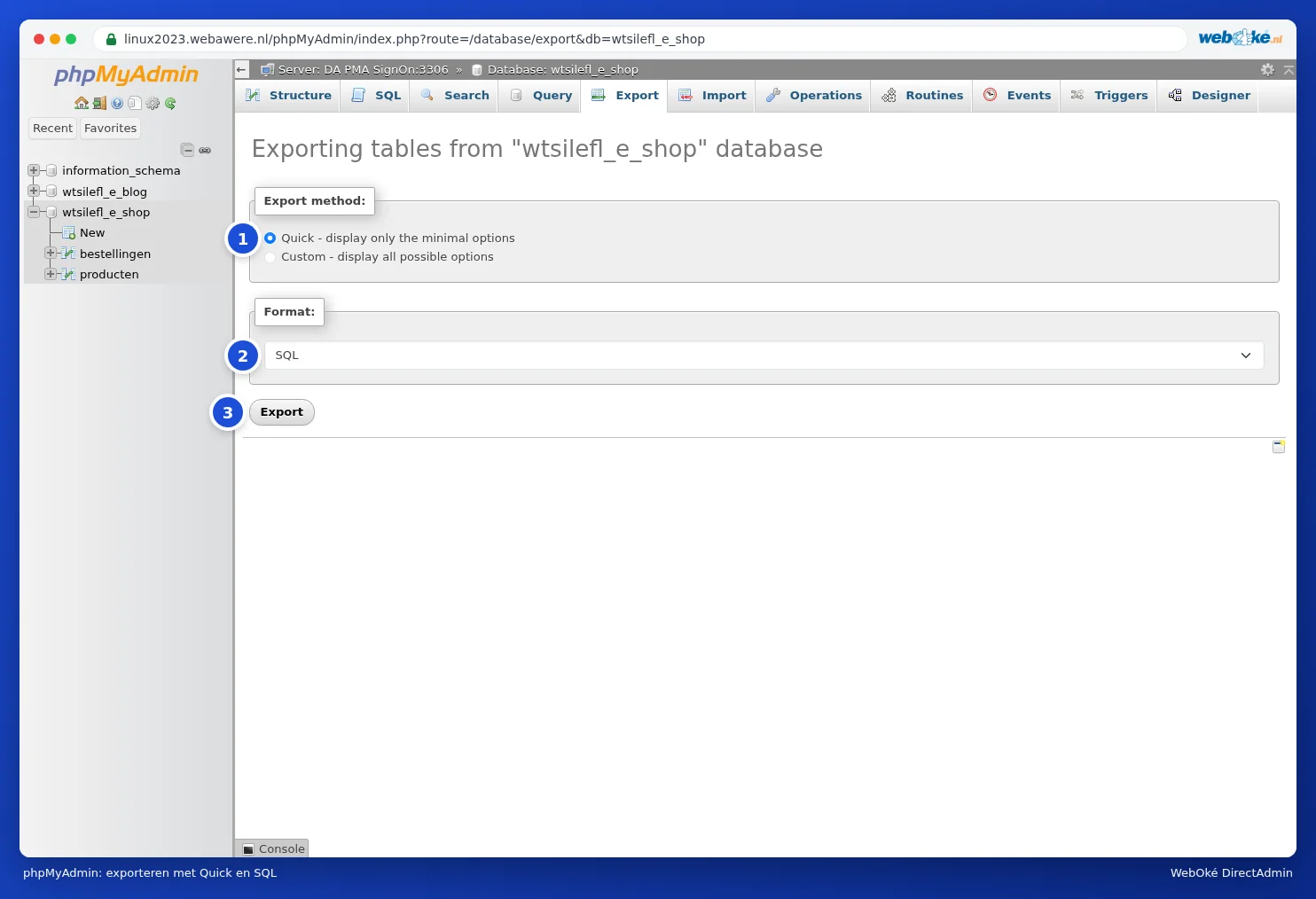
Do you only want a few tables, or would you like to compress the file straight away? Then choose Custom under Export method. You can then tick the tables you want and choose gzipped under Compression.
Tip: Make an export just before a major update to your website. If something goes wrong, you can restore it with an import (see Importing a database, including large files). WebOké also makes daily back-ups itself, including of your databases. You can restore these with WebOké Backups in My WebOké (see Can I also do this in My WebOké? WebOké Backups).
Can I also do this in My WebOké?
You create your own export in DirectAdmin or phpMyAdmin. To restore a database from WebOké's daily back-ups, use WebOké Backups in My WebOké, under My Products (see Can I also do this in My WebOké? WebOké Backups).