
Chapter 8 · 8.4
Tracking and accepting changes
Watch it in a short video
With Track changes, every edit becomes a suggestion. Added text gets a colour, deleted text is struck through. You or your colleague then decide for each change whether it stays. Many people know this from Word, and it works the same way here.
Turning on Track changes
- Go to the Collaboration tab.
- Click Track Changes (1) and choose:
- ON for me: only your changes are tracked.
- ON for me and everyone: the changes made by everyone editing the document are tracked.
Use OFF for me and OFF for me and everyone to turn it off again.

In the top right, the Edit button changes to Reviewing: this shows you that your changes are being tracked. Now just carry on working: everything you change is marked.
Accepting or rejecting changes
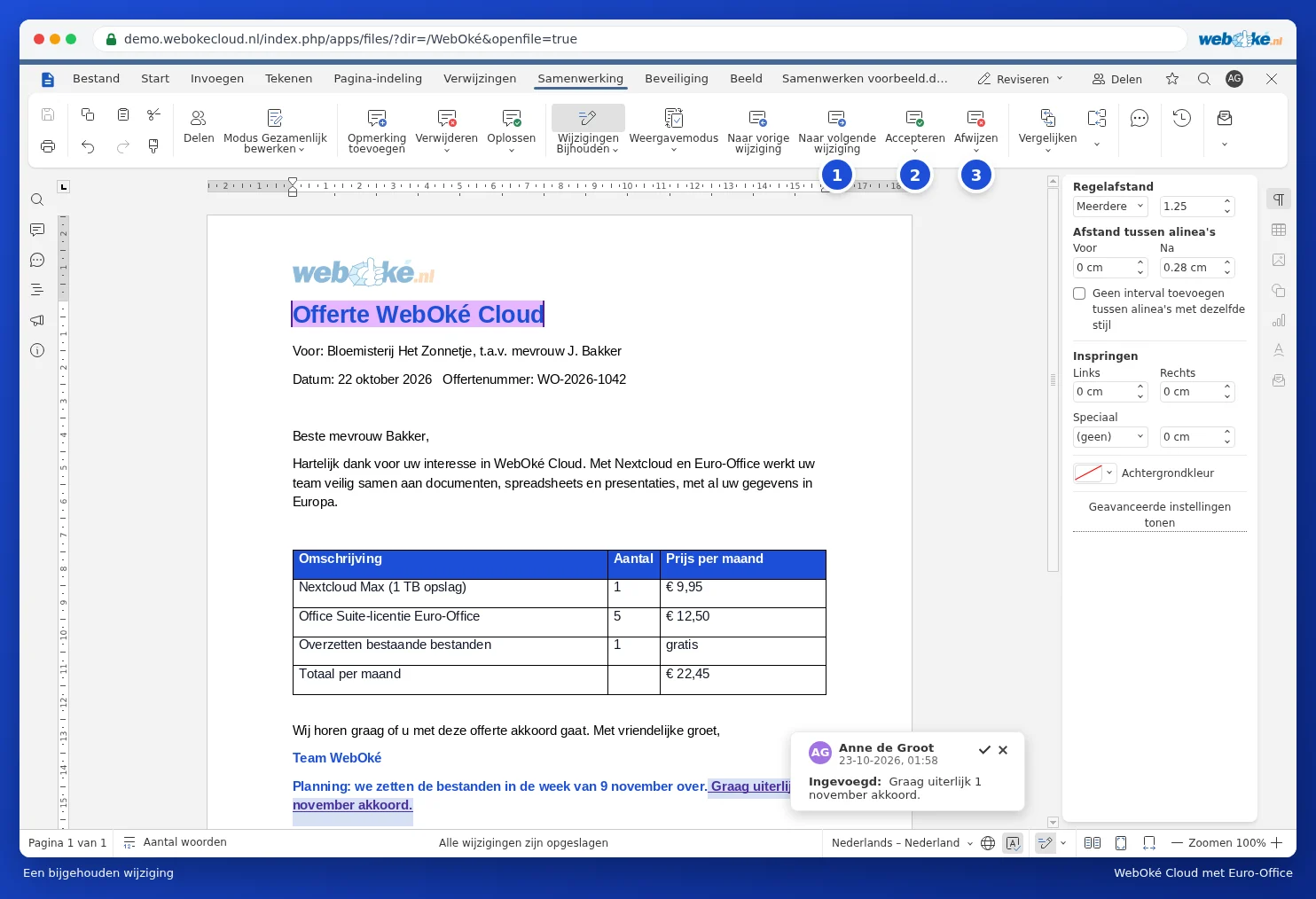
- Click Next (1) to go through the changes one by one. Use Previous to go back.
- Click Accept (2) if the change should stay, or Reject (3) to undo it.
- If you click a change in the text, a balloon appears showing who made the change and when. Use the tick in the balloon to accept the change, or the cross to reject it.
Use the arrow under Accept (1) to choose Accept current change or Accept all changes. Under Reject, you'll find Reject current change and Reject all changes.

How do you want to see the changes?
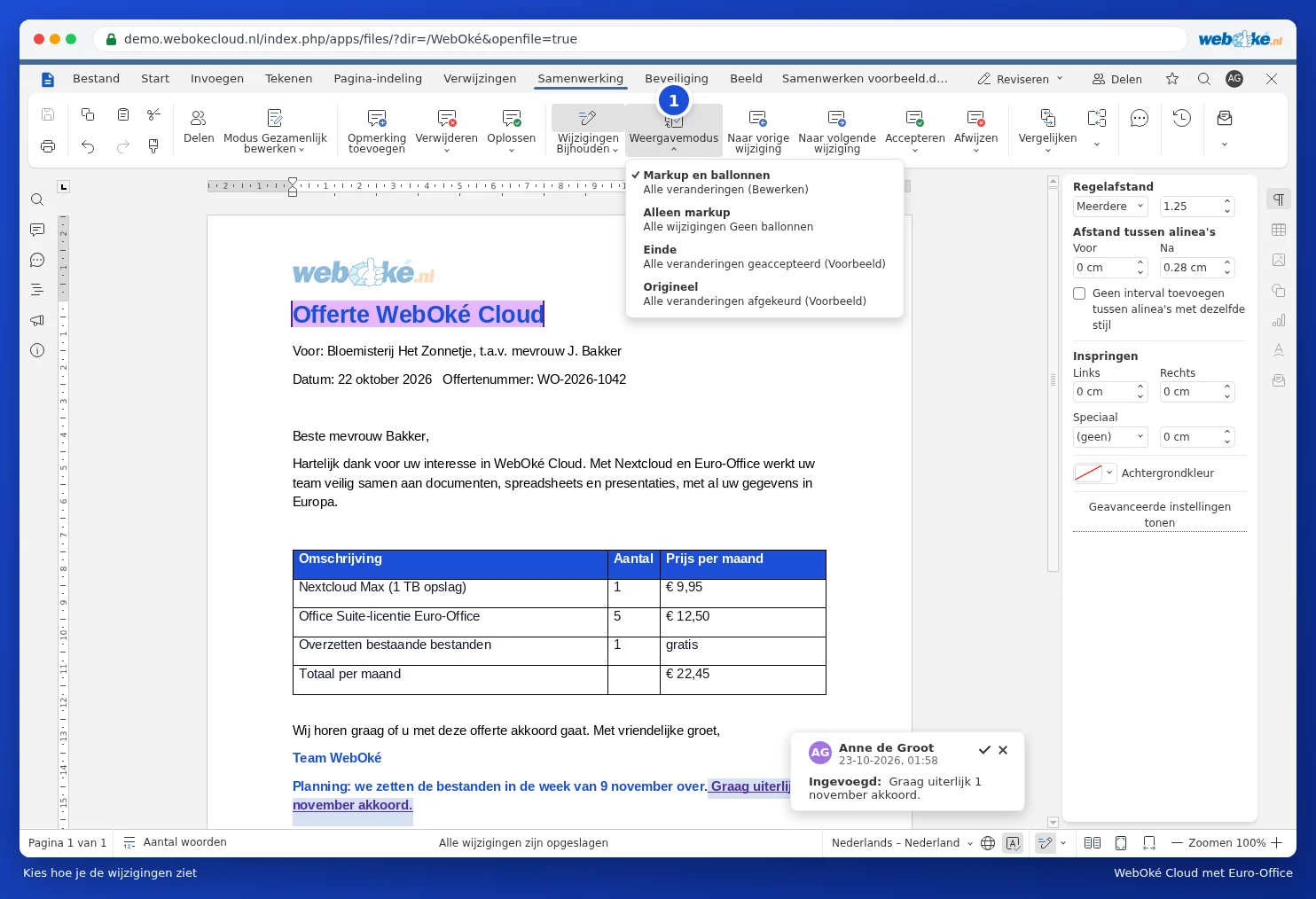
Use the Display Mode (1) button to choose how the document looks:
- Markup and balloons: changes shown in the text, with explanations in balloons.
- Only markup: changes shown in the text, without balloons.
- Final: shows how the document will look if you accept all changes.
- Original: shows how the document looked before the changes.
Tip: want a colleague to be able to make only suggestions, without changing anything directly? Protect the document with the tracked changes option, via the Security tab and the Protect Document button.
Please note: a document with unaccepted changes will still show those changes if you send it to a client. So accept or reject them all first, then turn off Track changes.