
Chapter 4 · 4.9
Footnotes, endnotes and links
Adding a footnote or endnote
A footnote is an explanatory note at the bottom of the page, marked with a small number in the text. An endnote works the same way, but appears at the end of the document.
- Place the cursor after the word the note relates to.
- Go to the References tab and click Footnote.
- Choose Insert footnote or Insert endnote and type your note.

The numbers update automatically. If you delete a note, the other numbers shift accordingly. Use Notes settings to choose the numbering style and location.
Adding a link
A link turns text into a clickable connection to a website, an email address, or a place within your document.
- Select the text that should become the link.
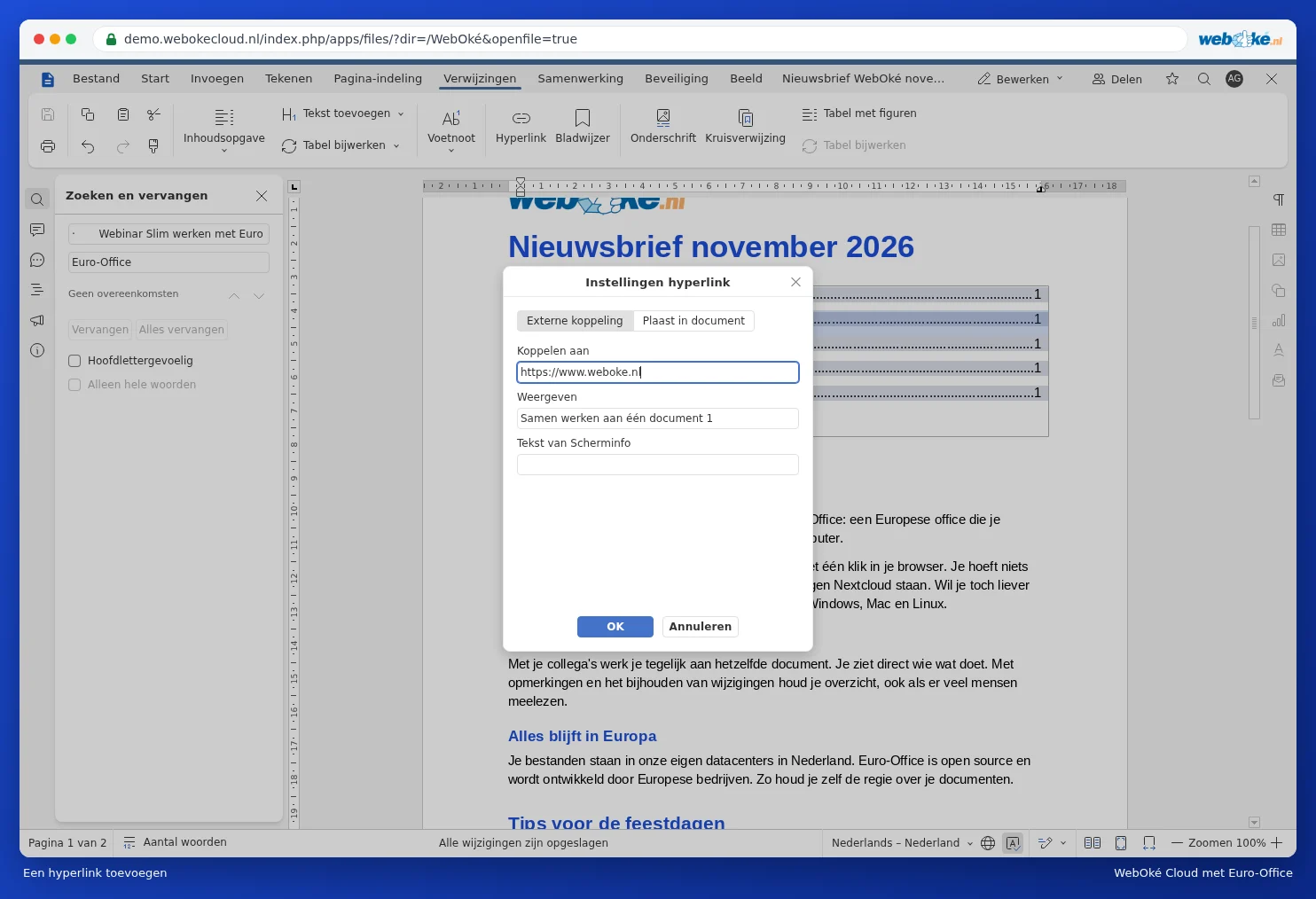
- Click Link (on the Insert or References tab), or press Ctrl + K.
- Choose External link and type the address, for example https://www.weboke.nl. Want to link to a heading or bookmark in the same document? Then choose the other tab, for a place in the document.
- Click OK.
To open a link, hold Ctrl and click it. Right-click the link to edit or remove it.