
Chapter 16 · 16.5
Have a client submit files with a password-protected file request with an expiry date
Watch it in a short video
The question: "My clients need to send me documents: payslips, invoices, photos. Email doesn't work well with large files and isn't secure. How do I get them to drop files with me, without them seeing anything else?"
The solution: a file request per client, in their own folder, with a password and an expiry date. The client uploads via their browser and doesn't need an account.
Step 1: a folder per client
- In Files, create a folder for submissions, for example Submissions.
- Inside it, create a folder per client, for example Submissions/Bakkerij De Linde 2026 (see Creating, moving, copying and renaming folders).
This way, a client can never reach another client's files, and you immediately know who sent what.
Step 2: creating the file request
- Click New and choose Create file request.
- Under Request subject, enter what you're asking for, for example "Annual documents 2026".
- Under Upload destination, choose this client's folder.
- Under Note for recipient, state exactly what you need and by when. The client sees this text at the top of the upload page.
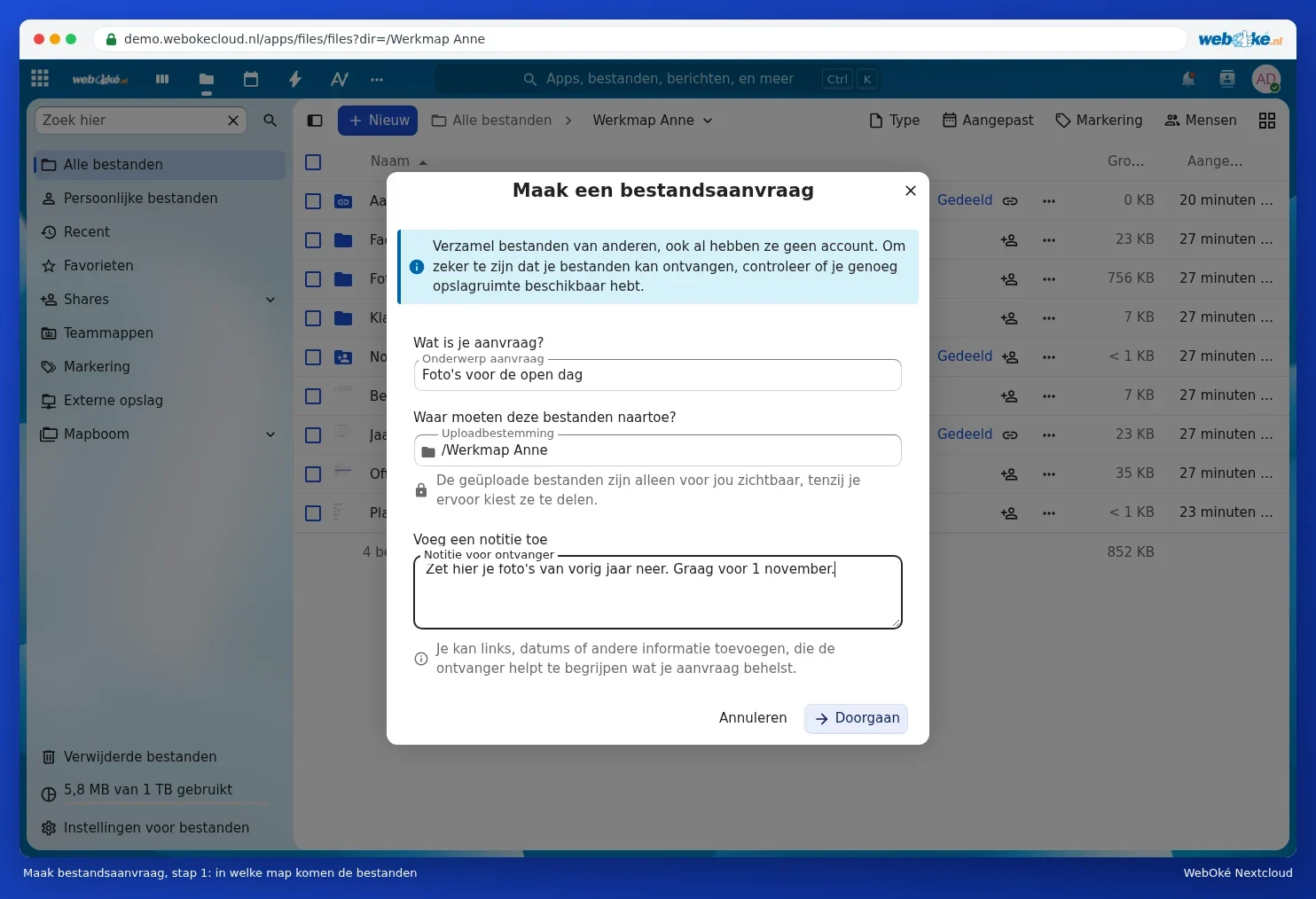
Step 3: password and expiry date
- Click Continue.
- Tick Set a submission expiration date and choose a date a few days after your deadline.
- Tick Set password and choose a password.
- Click Continue and copy the Share link using the button on the right of the field.
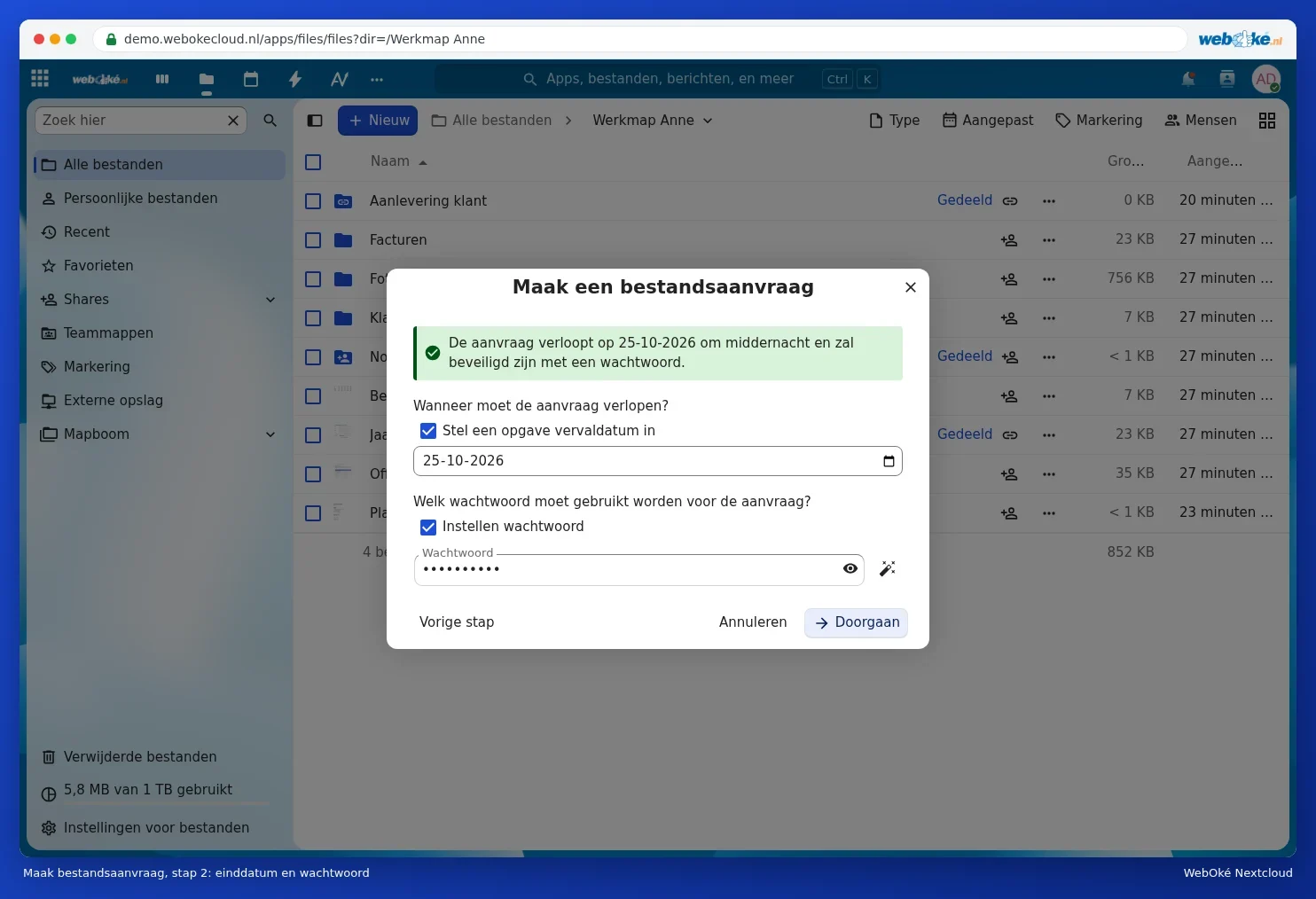
Step 4: sending the link and the password
Send the link itself to your client, for example by email. Send the password through a different channel: by text message, WhatsApp, or by phone. That way, anyone who intercepts the email still can't do anything with the link.
Your client opens the link, types in the password and clicks Upload or drags their files into the window. They only see your note and the upload button, not what's already in the folder.

Step 5: following up on incoming files
- In the Activity app and in the folder's Activity tab, you can see what came in and when (see Chat and activity for a file).
- After the expiry date, the link automatically stops working. If you're done earlier, remove the share in the folder's Share tab, or under Shares and File requests.
- Set up a new request for your client per year or per assignment. This keeps everything neatly separated.
Please note: what clients upload counts towards your storage (see Anyone using shared files uses your storage). So clear out or archive old submissions.
For more on the file request feature itself, see Having files sent to you: file drop and file request.