
Chapter 4 · 4.1
The Files app: overview and views
Watch it in a short video
The Files app holds all your folders and documents. Open it using the folder icon in the bar at the top, or via the menu with the nine dots in the top left. Everything you see here is stored securely in your WebOké Nextcloud and is also accessible from your computer and phone.
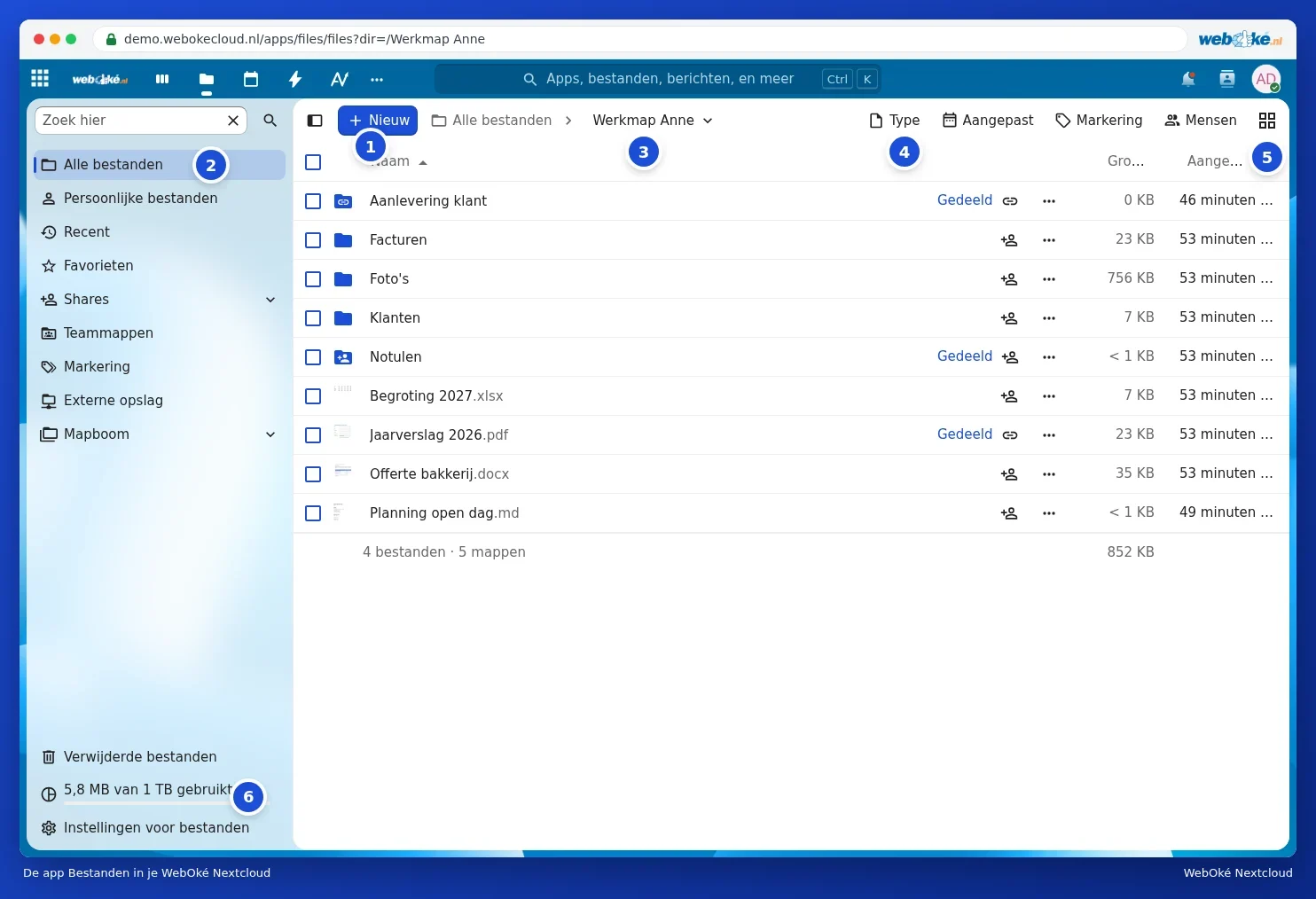
The parts of the screen
- New (1): upload files or folders and create new folders, documents or a file request. See Uploading and downloading, including large files, whole folders and zip and Creating, moving, copying and renaming folders.
- Navigation (2): All files, Personal files, Recent, Favourites, Shares, Team folders, Tags, External storage and the Folder tree. Above that is the Search here field.
- Breadcrumb (3): where you currently are. Click All files or a folder in the path to go back.
- Filters (4): show only a certain Type (for example pdf or images), files Modified within a certain period, with a certain Tag, or from certain People.
- View (5): switch between list and grid.
- Storage (6): how much space you're using. See Viewing your storage: what counts and what doesn't.
At the bottom left you'll also find Deleted files (your bin, see Recovering a deleted file from Deleted files) and Files settings.
List or grid
In the list view, you see the Name, Size and when a file was last Modified. Click a column heading to sort by it; click again to reverse the order.
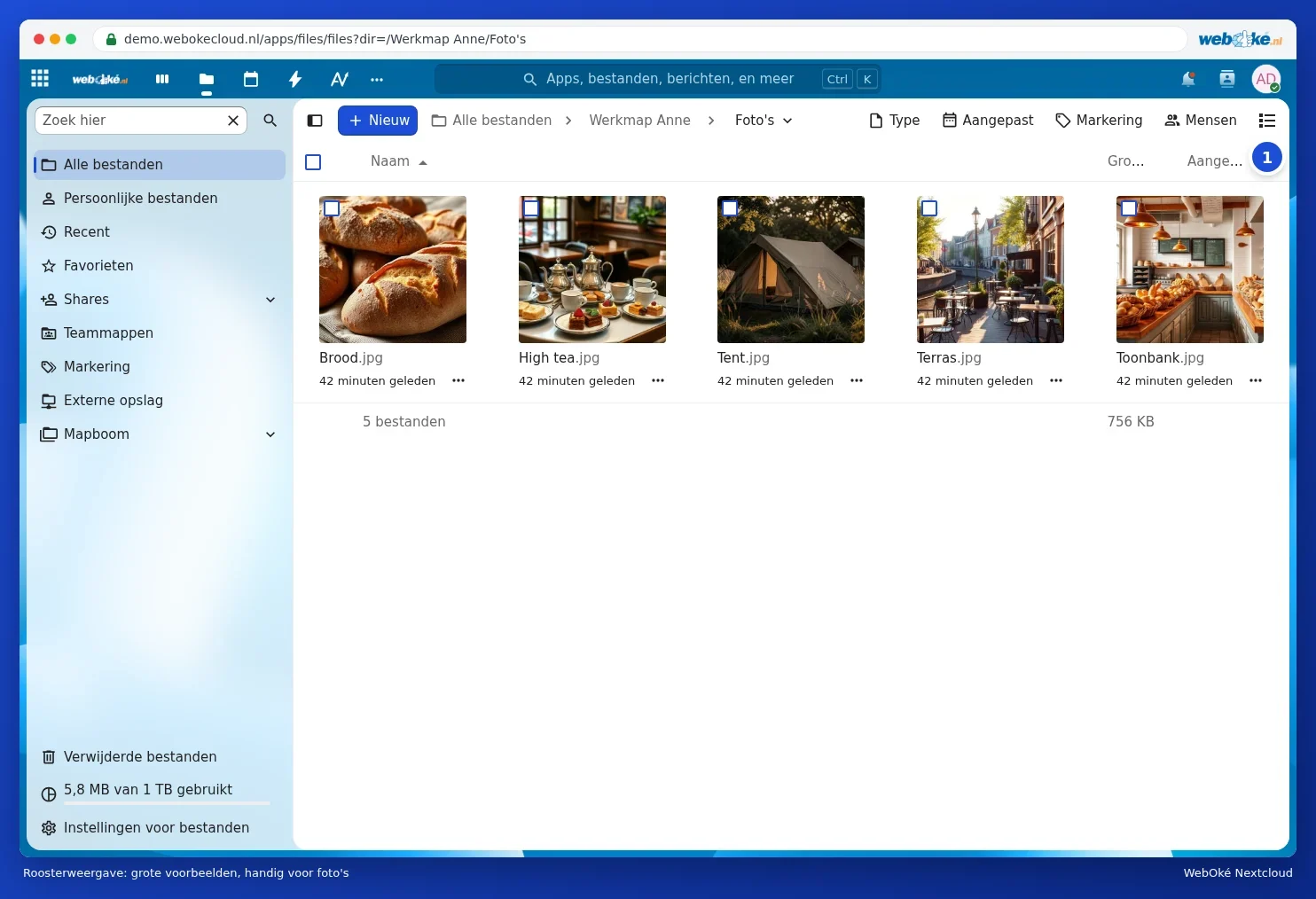
The grid view shows large previews. This is handy in a folder with photos. Use the same button at the top right (1) to go back to the list. Nextcloud remembers your choice.
The details sidebar
Right-click a file (or the three dots in the row) and choose Details. The sidebar opens on the right with a preview, the size, the date and the owner. Below that are tabs:
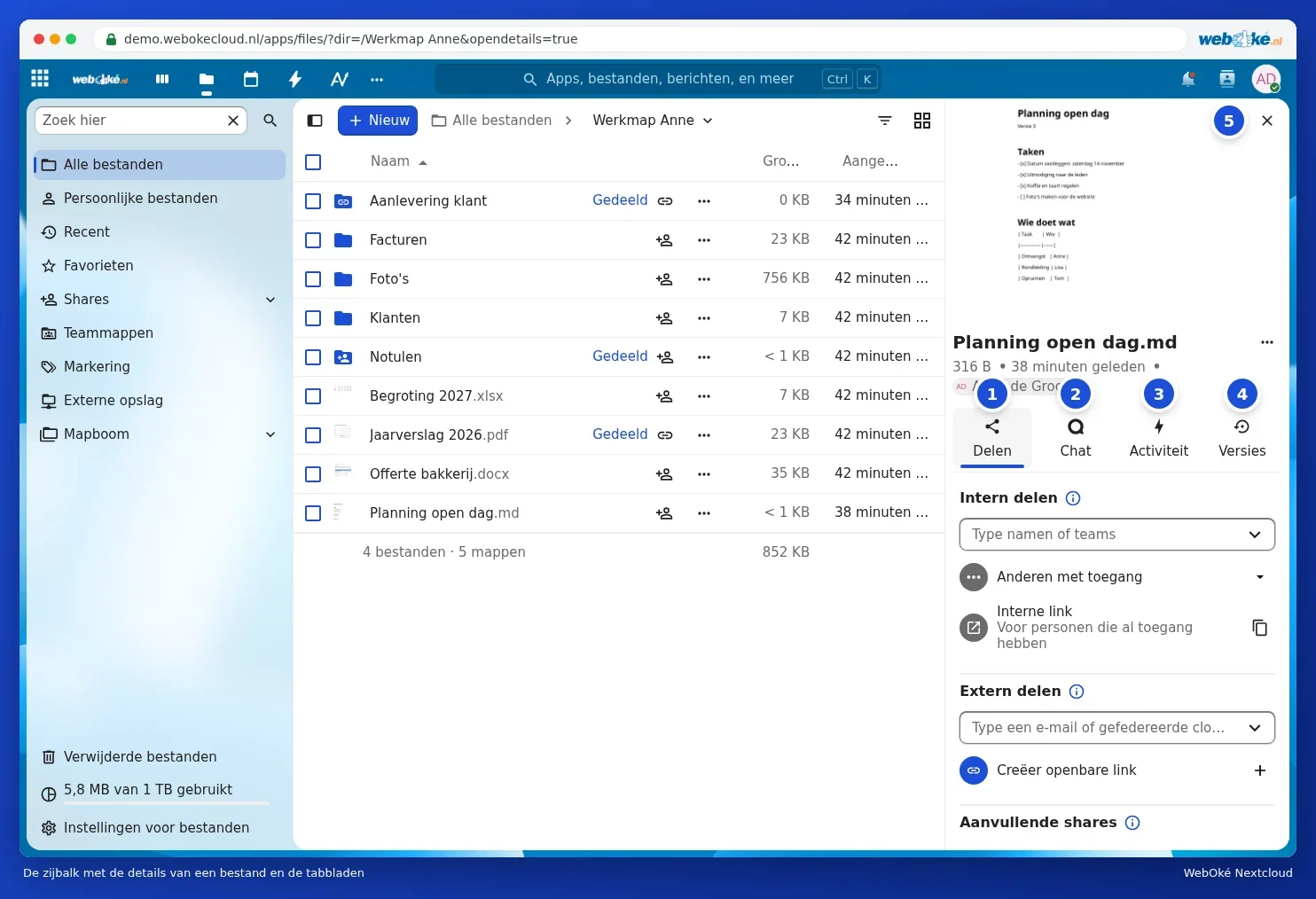
- Share (1): share the file with others or via a link. See Sharing with a user from your own Nextcloud and Creating a public link: viewing, editing, password, expiration date and download limit.
- Chat (2): discuss this file. See Chat and activity for a file.
- Activity (3): who did what with the file.
- Versions (4): restore earlier versions. See Restoring an older version and naming versions.
Click the cross (5) to close the sidebar again.
Files settings
Via Files settings at the bottom left, you decide, among other things, whether folders appear above files, whether favourites come first, whether hidden files are visible, and whether you get a warning before deleting a file. In the same place, under WebDAV, you'll find the address for connecting your Nextcloud as a network drive.
Tip: Office documents (Word, Excel and PowerPoint) and pdf files open in Euro-Office. You can find out how to work with them in the Euro-Office manual.