
Chapter 8 · 8.1
AI Builder: having your website built for you
With the AI Builder, you describe in plain words what kind of website you want. The AI writes the text, chooses colours and fonts, creates photos and puts it all together in a few minutes. After that, you fine-tune everything until it's exactly right. You can try it for free, even without a package.
Where do you find the AI Builder?
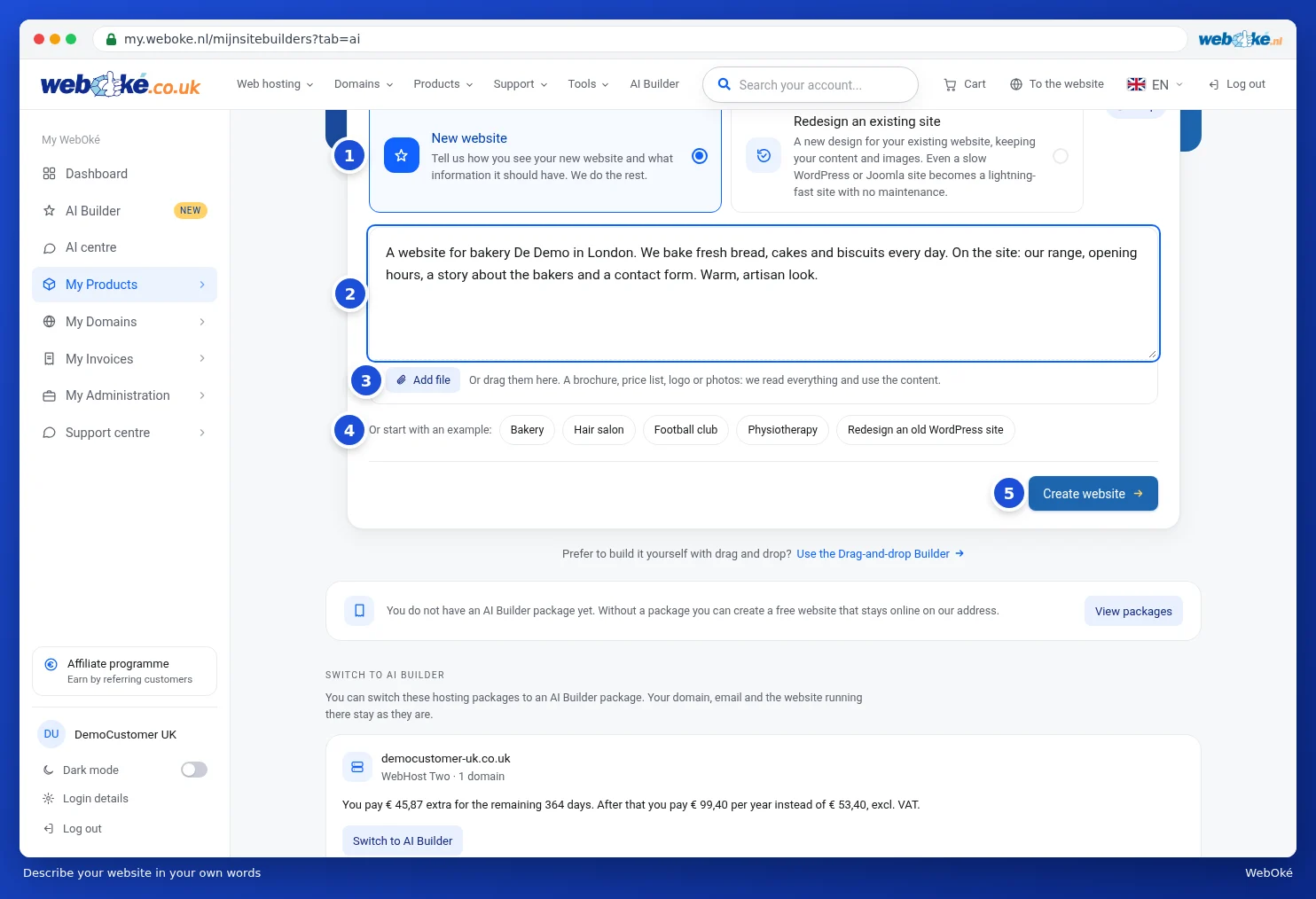
Click AI Builder in the menu on the left. This takes you to My Website Builders, the same page you'll also find under My Products. At the top, there are two tabs: AI Builder (1) and Drag-and-drop Builder (2). With the AI Builder, you describe your site (3) and click Create website (4). Would you rather build it yourself by dragging and dropping? Then read The Drag-and-drop Builder.

Describing a new website
- Choose New website (1).
- In the text box (2), tell us what you do, for whom and where. Also mention what information should be included and what mood you're after. For example: a website for bakery De Demo in Utrecht, with our range of products, opening hours, a story about the bakers and a contact form, warm artisan feel. The more specific you are, the better the first version will be.
- Already have some material? Click Add file (3) or drag files into the box. A brochure, price list, logo or photos: the AI reads everything and uses the content. You can add up to 6 files, each a maximum of 8 MB, such as PDF, Word, text and images.
- Not sure how to start? Click an example (4), such as Bakery or Hair salon. The example appears in the text box and you adjust it to fit your situation.
- Click Create website (5).
Tip: is your description very short, for example just photographer? Then the AI first asks one more question: Where are you based and what do you offer? That answer appears below your description. Click Skip to continue straight away.
Choosing where your website goes
After Create website, the Where should your website go? window opens.
- Free website (1): your site goes on an address of ours, such as name.weboke.site. Each customer can create one free website. It goes online for free, with a small WebOké badge, isn't visible in search engines and the contact form doesn't send anything yet.
- If you have a package with the AI Builder, that package is also listed. If you see Available or a number of free slots, your site can go there.
- Under Images (2), choose what kind of visuals the AI creates: Automatic, Photos, Illustrations, Own photos (the AI leaves spaces for your own photos) or No images. You can change this later under Style.
- Click Continue (3).

You can always move to a package or your own domain later. You can read how in AI Builder: editing, versions and publishing.
The AI builds your site
The building screen opens straight away. On the left, the chat shows how far the AI has got: reading the description, writing pages and text, creating photos. On the right, the progress runs alongside. This usually takes two to four minutes.

As soon as the first version is ready, you'll see it on the right just as visitors will see it later. The first time, a short Tour walks you through the main buttons. Click Next to continue, or the cross to close it.

First the mood and the email for your form
On the left is the Mood of your site card. Choose a different Style, a different Menu, the Colour of the menu bar or different Colours: you'll see the change straight away on the right. Under Name in the menu, you adjust the name, and under What appears in the menu? you choose between logo and name. If you're happy with how it looks, click Keep as is. You'll find all these options again later under Style.
After that, you can set up where messages from your contact form arrive and which address they're sent from. You can also do this later, under Settings. Click Continue to the chat to get started with adjustments.
Having an existing site redesigned
Already have a website, for example an old WordPress or Joomla site? Then have a new design made for it, keeping your text and photos.
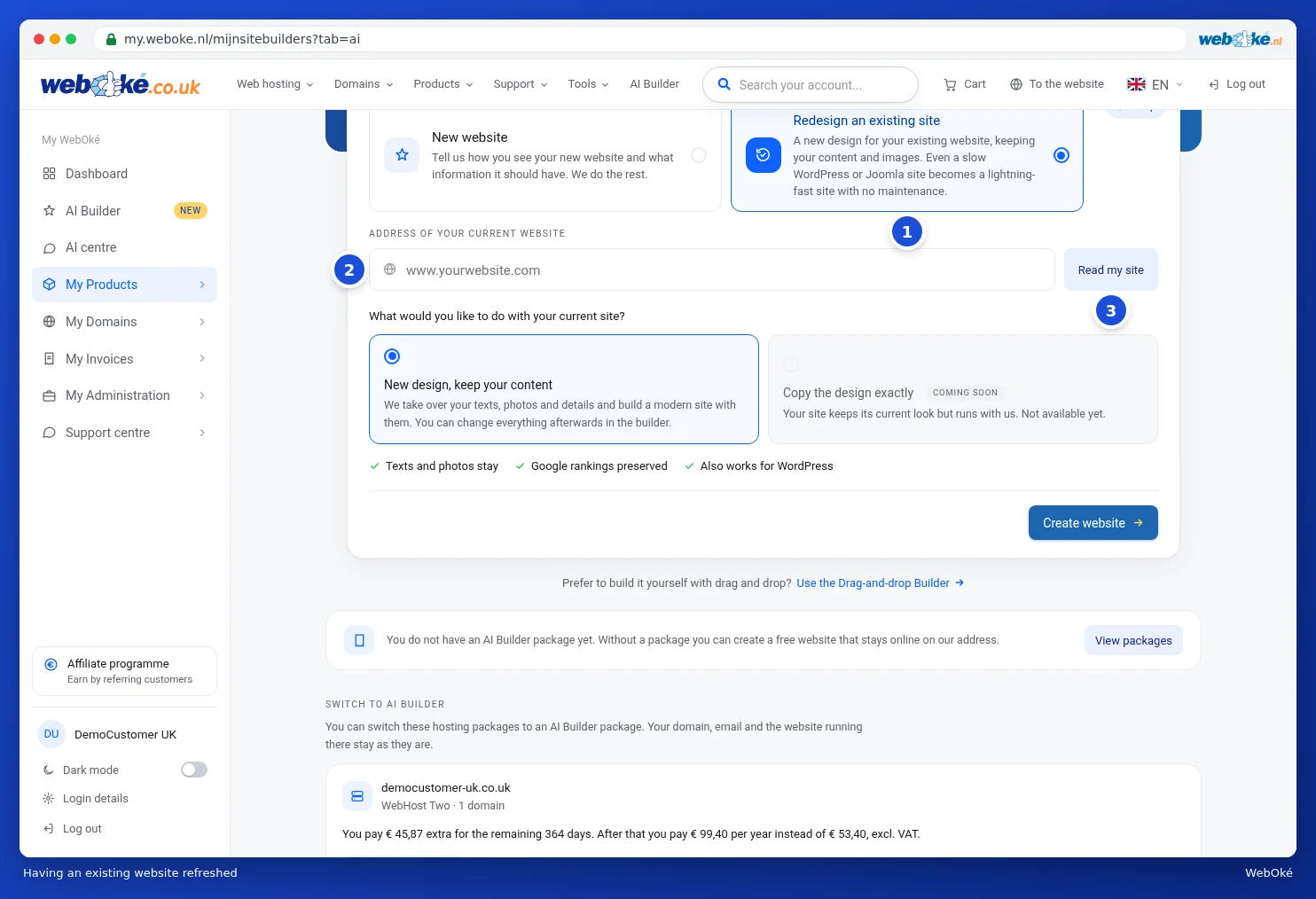
- Choose Redesign an existing site (1).
- Enter the web address under Address of your current website (2).
- Click Read my site (3). The AI reads your pages, photos and details.
- You'll then see which pages were found. Untick anything you don't need. If you want to keep your current colours and fonts, leave that option on. Under What would you like to change about the design?, tell us what can be different.
- Under What would you like to do with your current site?, New design, keep your content is switched on: we take over your text, photos and details and use them to build a modern site.
- Click Create website and choose where the site goes, just as with a new website.
Already have a hosting package? Switch to AI Builder
Below the start card, hosting packages with a single domain sometimes show the Switch to AI Builder block. This turns your hosting package into an AI Builder package. Your domain, your email and the website currently running on it stay exactly as they are. You'll see in advance what it costs for the rest of your period. Would you like a different package, then read Changing your package (upgrade or downgrade).