
Chapter 11 · 11.5
Transferring and merging accounts
Selling your business, stopping a website, or having someone else take over your hosting from now on? You can transfer a package or domain to another WebOké customer. If you have two accounts with us yourself, you can merge them into one. You arrange both in My Administration.
Transferring to another customer
On the Transfer tab, you can see what you can transfer: your hosting packages (with all domain names linked to them) and your separate domain registrations. Transferring is free of charge.

- Click Transfer next to the package or domain (1).
- Read in the window what comes with it. For a package, all websites, e-mail and data move to the new owner.
- Enter the recipient's e-mail address twice (1). This is the e-mail address of their WebOké account.
- Enter your own password (2) to confirm and click Transfer.
If there is still an outstanding invoice for the package, you can only transfer it once the invoice has been paid. Invoices that have already been sent remain with you. Future invoices will be issued in the recipient's name.
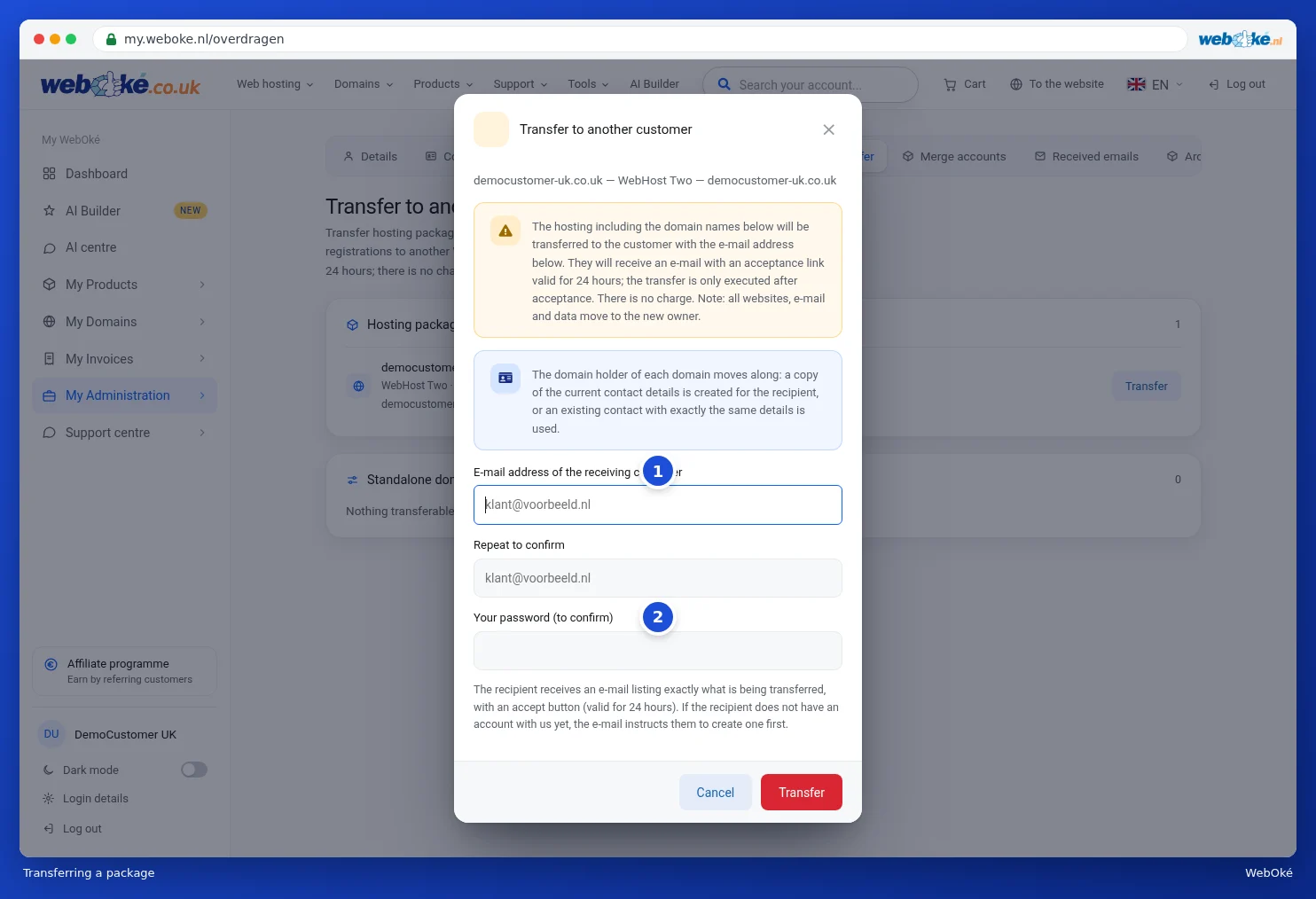
The recipient receives an e-mail with exactly what is being transferred and a button to accept. That link is valid for 24 hours. The transfer only goes ahead once they accept. If the recipient does not have an account with us yet, the e-mail instructs them to create one first.
The domain holder moves along too: the recipient gets a copy of the current contact details, or we use one of their contacts with exactly the same details.
As long as the recipient has not yet accepted, the transfer appears at the top of the current transfers. If you change your mind, click Withdraw transfer.
You can also transfer a package or domain from the product page or the domain page. See Cancelling, undoing cancellation, or transferring a product and Cancelling or transferring a domain.
Merging accounts
On the Merge accounts tab, you merge your entire account with another WebOké account. On the left, you can see what comes with it: services, domain registrations, contact profiles, invoices and support tickets. Everything is transferred, including your credit and your history. Nothing changes about the domains themselves, not even at the registrars. Existing invoices keep the name they were created under.

- Enter the e-mail address of the account you want to merge with, and enter it again to confirm.
- Enter your password to confirm.
- Click Merge accounts.
The owner of the other account receives an e-mail with exactly what is being transferred and a button to accept, valid for 24 hours. Once they accept, we transfer everything.
Please note: merging is final. Once accepted, the account you are currently logged in with is closed, including your login details. Nothing is left behind. Afterwards, log in to the other account.
Tip: do you just want someone else to be able to view or help with your account? Then you don't need to transfer anything. Invite them as a user, see Inviting users and setting permissions.