
Chapter 7 · 7.4
Mail not arriving: check it yourself
Is your mail not arriving, or does it end up in the recipient's spam folder? This is usually down to a few settings that you can check yourself. Go through these steps before contacting us.
1. Are the DNS records for your mail correct?
Open the product page for your package and look at the Set up email card. Do MX, A (mail), SPF, DKIM and DMARC say Correct? If not, you'll see exactly what to change. See The Set up email card (MX, SPF, DKIM, DMARC).
- No or an incorrect MX record: incoming mail doesn't reach us.
- No SPF or DKIM: your outgoing mail is more often rejected or ends up in spam.
2. Use the email check
The website has a free email check, even without an account. You'll find it on the website under Tools, in All tools. Enter your domain name or email address (1) and click Check Email Setup.

You'll get a score from 0 to 100 (1) with a grade from A to F (2). Under Score opbouw (3) you'll see how many points MX, SPF, DMARC and the blacklist check contribute. Without SPF and DMARC, the score stays limited.
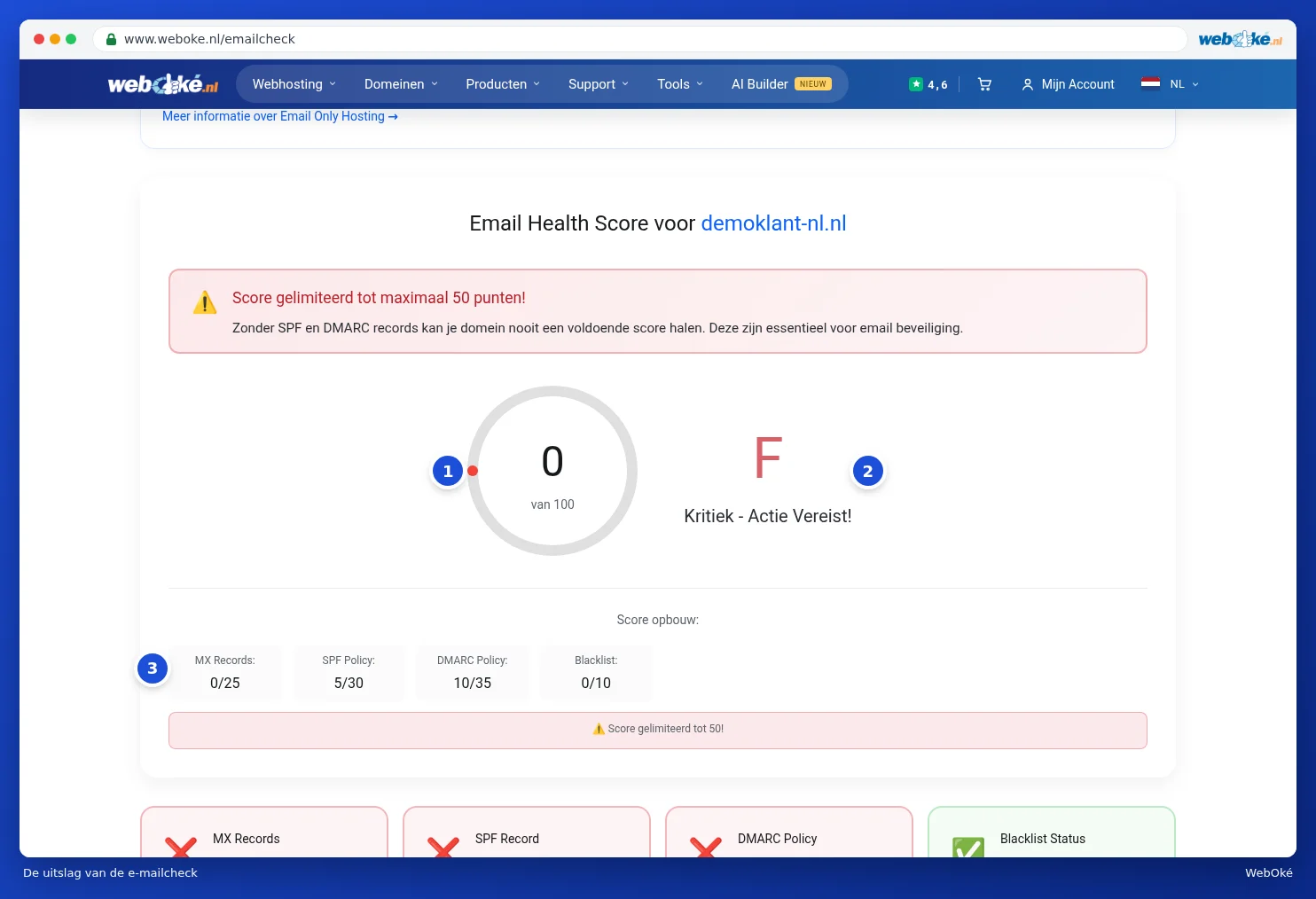
Below that, you'll see what's good and what could be improved for each component. Under Blacklist Status you'll see whether your domain's mail server is on a blacklist.

For a more thorough check of your domain and mail, with buttons to fix things straight away, see Domain and email health: checking and fixing.
3. Can't you log in or send mail?
- Check your mail program's settings: server, port 993 for IMAP and 587 for SMTP, and your full email address as the username. See Email with WebOké: mailboxes, webmail and your email program.
- Has everything suddenly stopped working, including the website? Your IP address may have been blocked after a few incorrect password attempts. See Am I blocked? Release your own IP address.
- Does it work in webmail? Then the problem lies with your mail program, not your mailbox.
4. Is your mailbox full?
If your storage space is full, new mail will be rejected. Check Usage on the product page. Clear out mail or expand your storage, see Expanding storage.
5. Check your emails from WebOké
If something keeps going wrong with mail from your package, we'll send you an email about it. For example, if you forward mail from a domain that doesn't allow this, if a form on your website sends mail with the sender address of another domain, or if you keep sending mail to addresses that don't exist. That email explains what you can do. You can find all our emails to you in My WebOké, see Reading back received emails.
Tip: mail from a contact form on your website often doesn't arrive because the form uses the visitor's address as the sender. Set a sender address from your own domain in your website, such as info@yourdomain.co.uk, and put the visitor's address in the reply to (Reply-To) field.
Can't work it out? Ask the AI assistant, see The AI assistant: what can it do for you?, or contact support, see Submitting a ticket.