
Chapter 8 · 8.3
The Drag-and-drop Builder
Would you rather build your website entirely yourself? Then use the Drag-and-drop Builder. You choose a template and customise every element by hand, using drag and drop. You can add a free Drag-and-drop Builder to any domain in a hosting package. Want to use all features later? You can always upgrade to the paid version.
Where do you find the Drag-and-drop Builder?
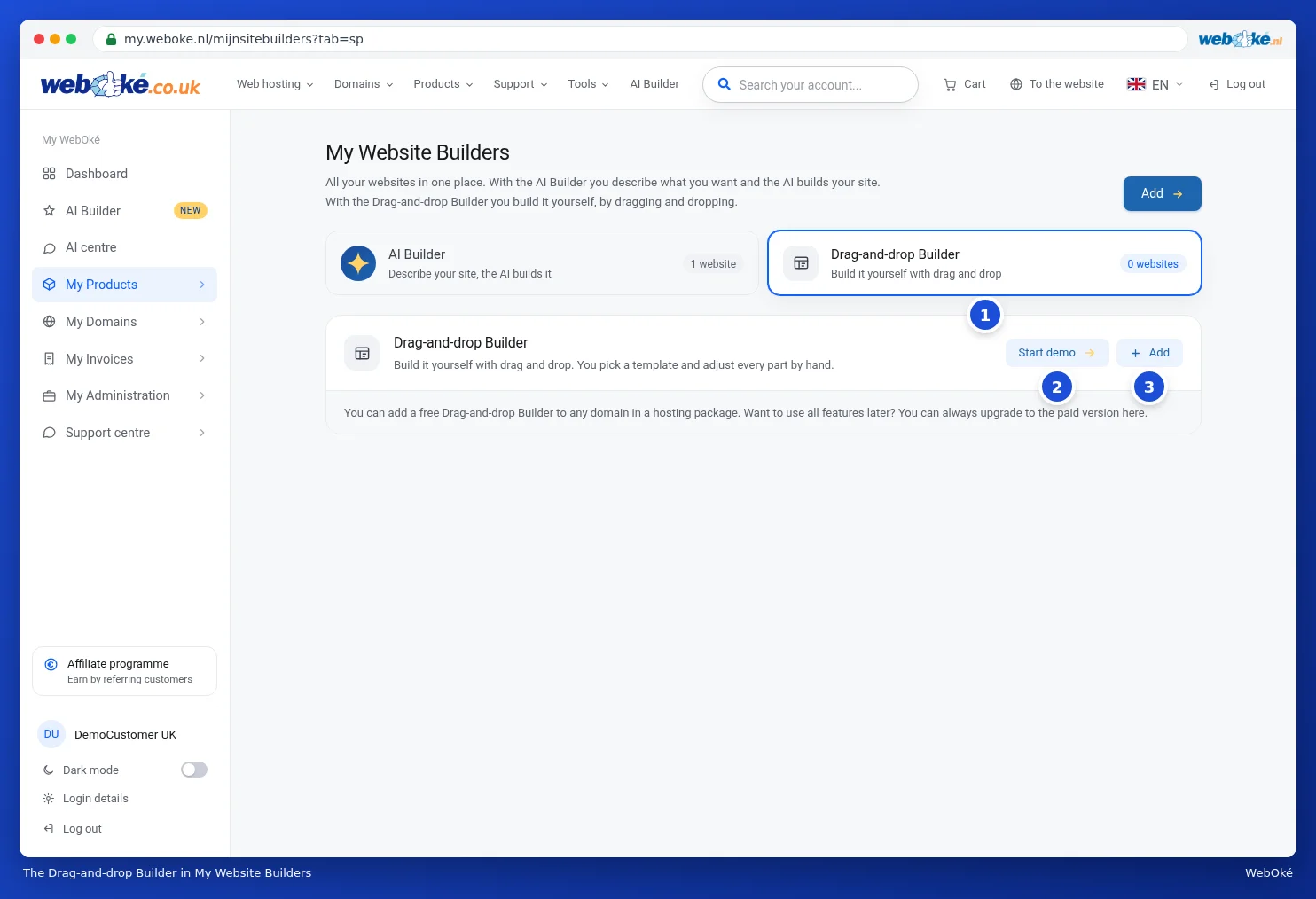
Go to My Products and choose My Website Builders, or click AI Builder in the menu on the left. Click the Drag-and-drop Builder tab at the top (1). Use Start demo (2) to try out the builder first, without creating anything. Use Add (3) to link a builder to a domain.
Adding a builder
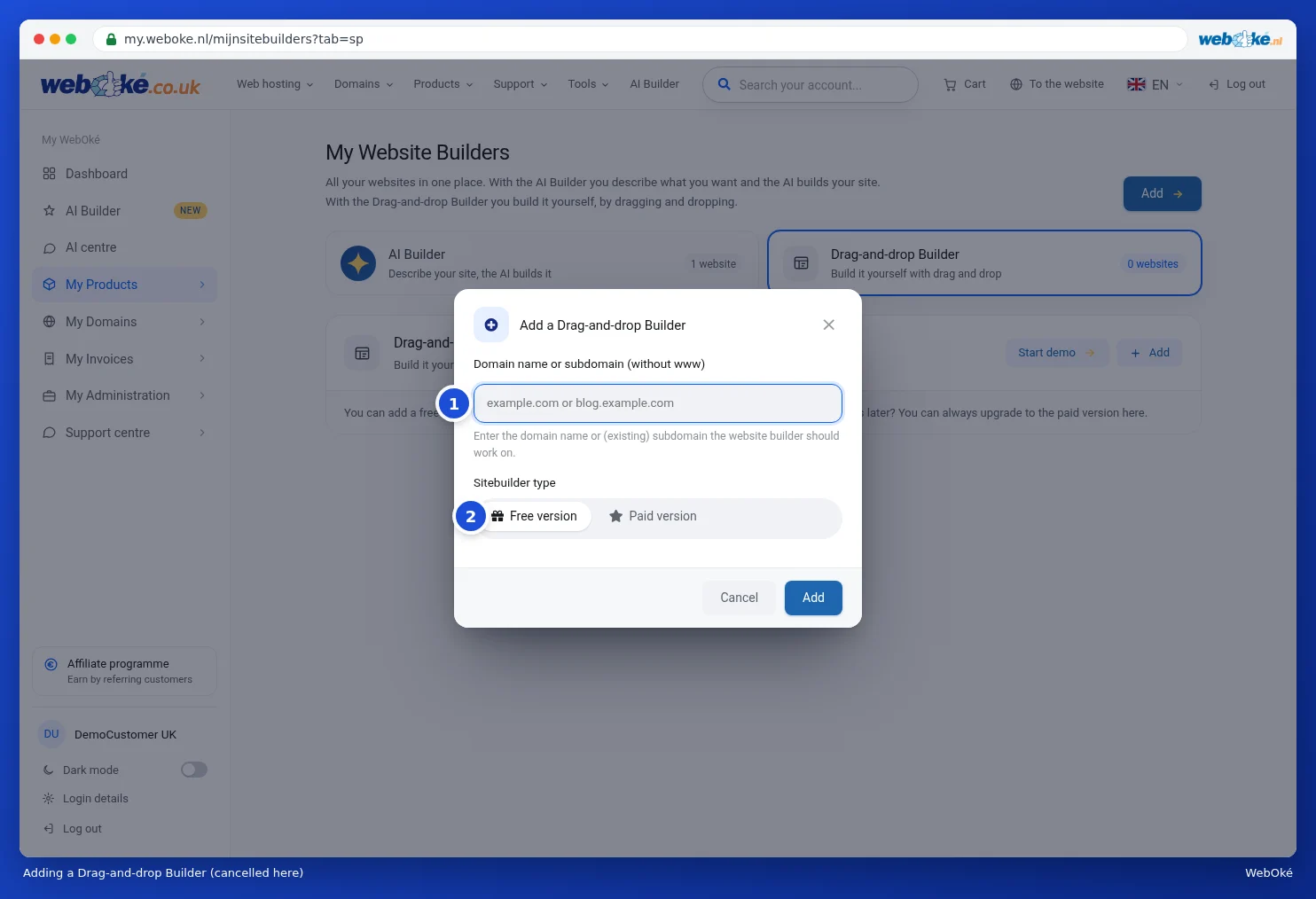
- Click Add. The Add a Drag-and-drop Builder window opens.
- Under Domain name or subdomain (without www) (1), enter the domain the website will go on, for example example.com or blog.example.com. A subdomain must already exist.
- Under Sitebuilder type (2), choose the Free version or the Paid version. The paid version has more features.
- Click Add. Use Cancel to close the window.
Managing your builders
Once you've added a builder, it appears in the list with the domain, the type (Free version, Paid version or Sitebuilder package) and when you last started it. At the top, you can see how many paid builders you have and how many are in use. You have these buttons for each builder:
| Button | What does it do? |
|---|---|
| Start | Opens the builder in a new tab. There you build your site and publish it. |
| Change | Changes the domain name the website is published on. |
| Upgrade | Converts a free website to a paid one, with more features. |
| Downgrade | Converts a paid builder to the free version, one time only. After that you can't upgrade again. |
| Backups | Shows the automatic backups of this builder. |
| Delete | Deletes the entire website. Gone is really gone. |
Backups of your builder
Every night we automatically back up your builder project. We keep at most 6; the oldest one rolls off. Click Backups for a builder. For each backup you can choose Restore, Download or Delete. Use Create a backup now to make one straight away.
Please note: restoring overwrites the current project in the builder. Your live site only changes once you publish from the builder afterwards.
Tip: not sure which builder to choose? With the AI Builder you have a complete site in a few minutes, which you then customise using ordinary words. See AI Builder: having your website built for you. The Drag-and-drop Builder suits you if you want to place every detail yourself.